A redesigned home dashboard, onboarding checklist, and smarter competitor and brand-matching suggestions
This release makes it faster to get a new report up and running, keep an overview on your existing reports, and easier to keep its tracking accurate as you go: a redesigned home page, a step-by-step setup checklist, instant first results, and new suggestions for competitors and brand matching.
A redesigned home page
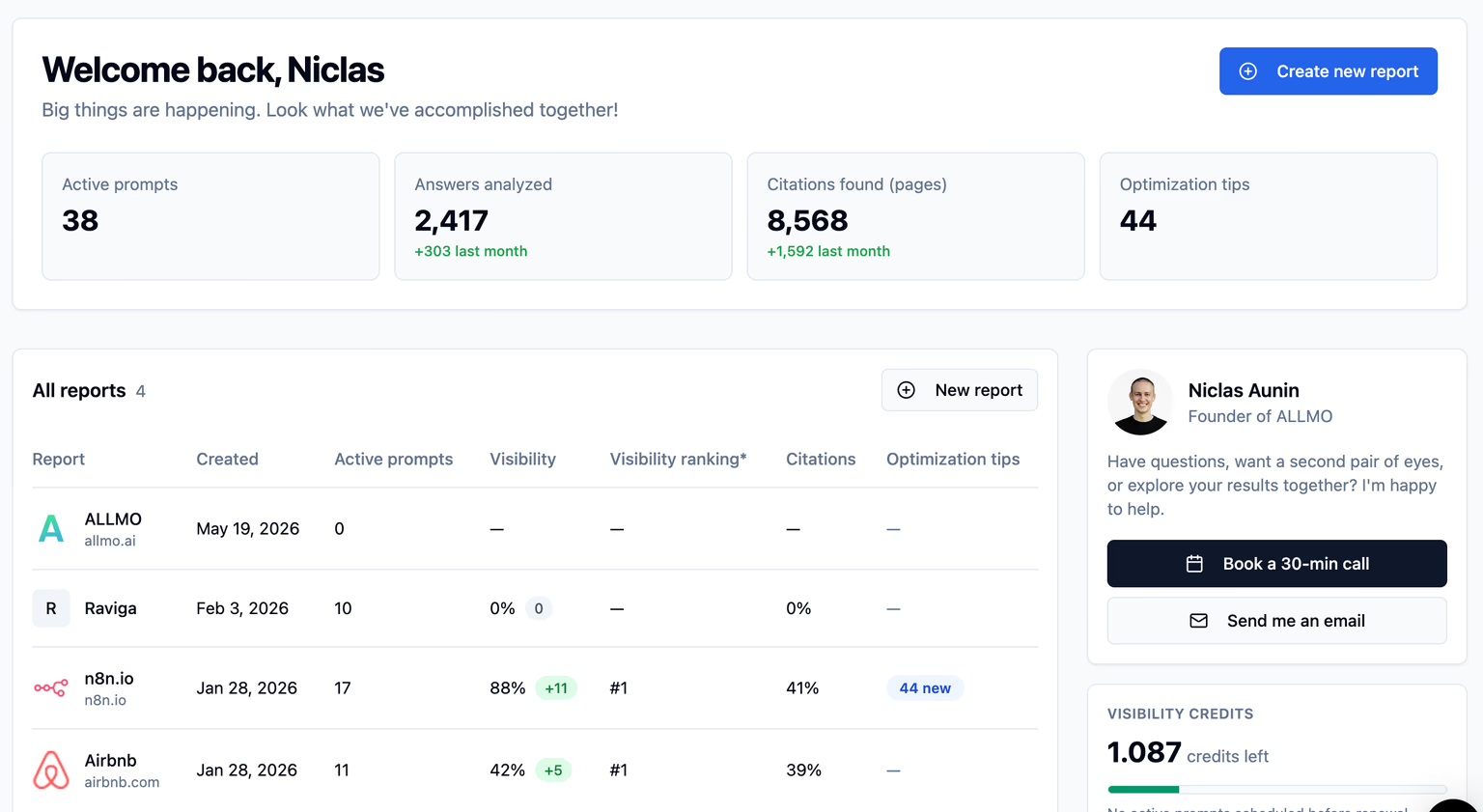
The new Home now starts with an overview on key metrics usage across ALLMO, like active prompts, answers analyzed, citations found, and optimization tips, each with how much it grew over the last month. Instead of static getting-started tiles.
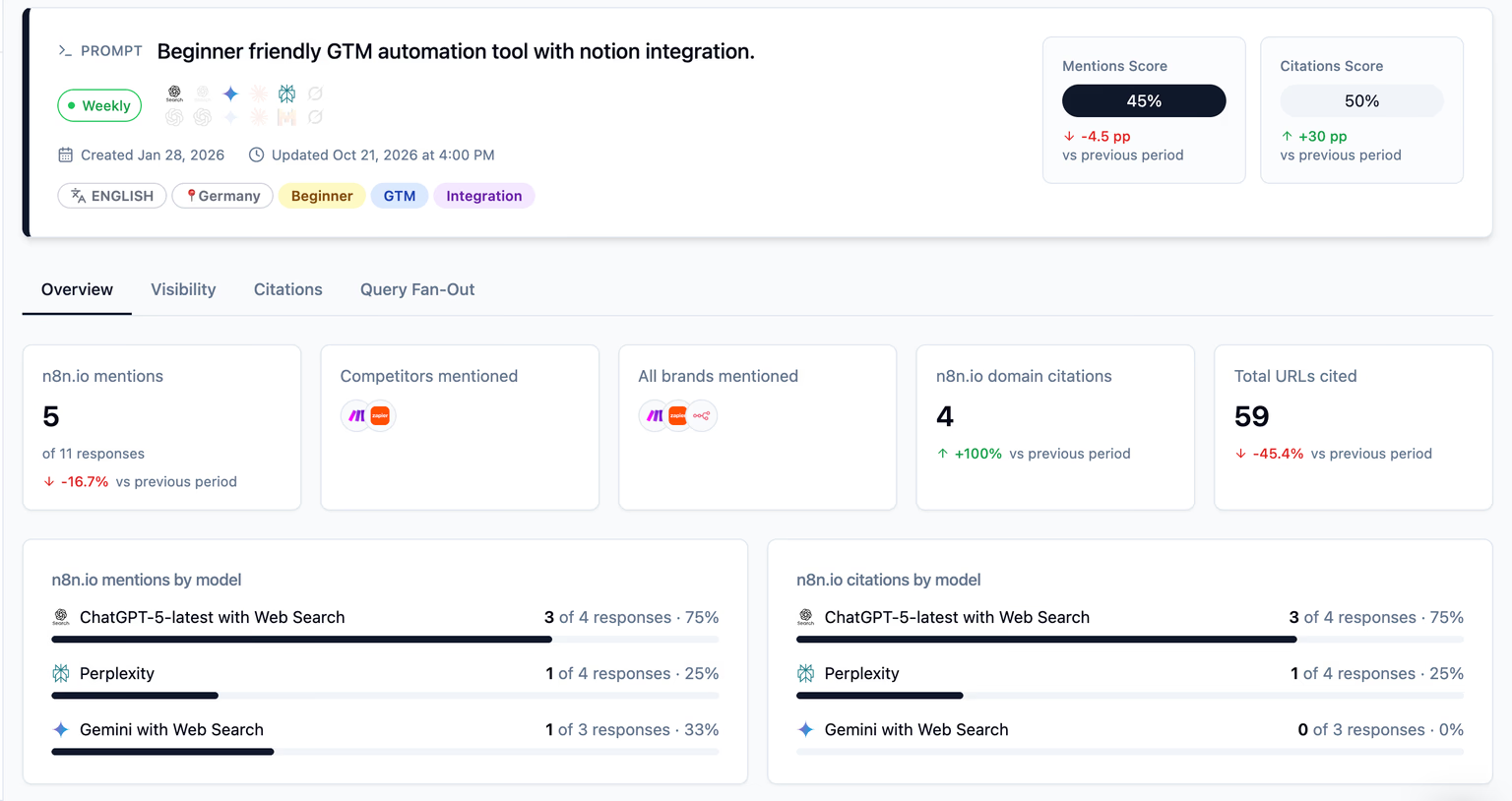
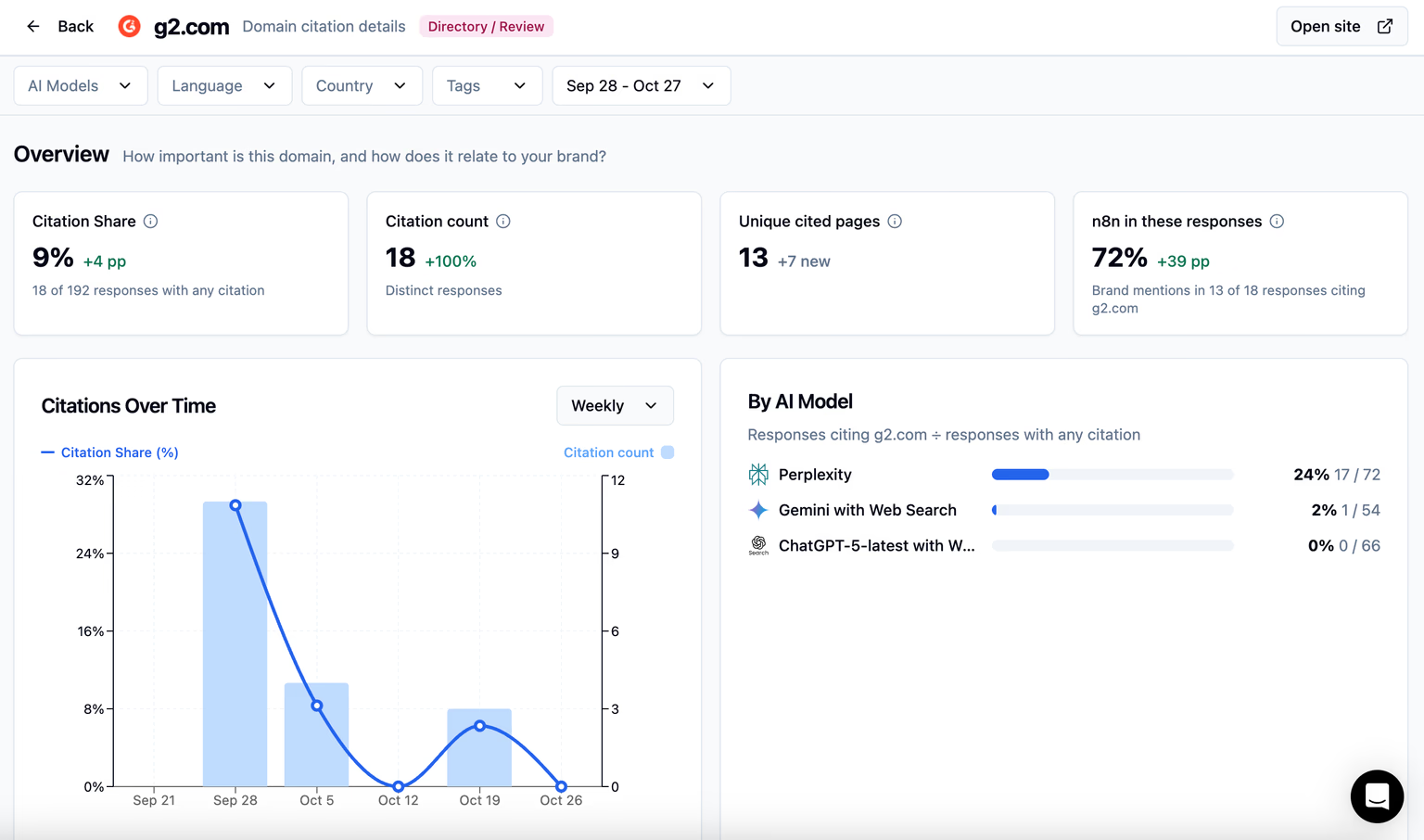
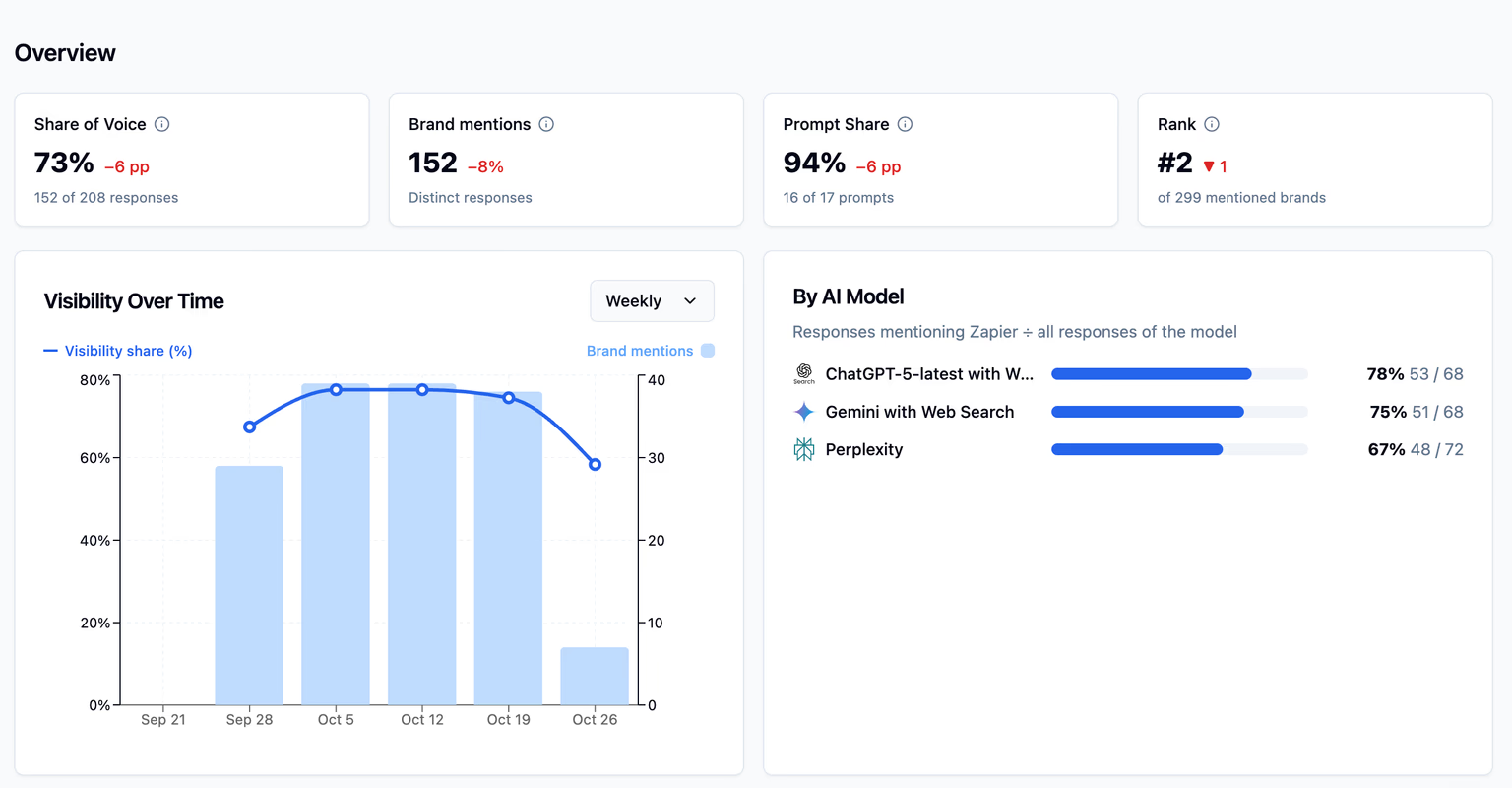
- The All reports table now show provides you with key stats on your reports, including Visibility, Visibility ranking, Citations, and a count of new Optimization tips, so you quickly now were to act.
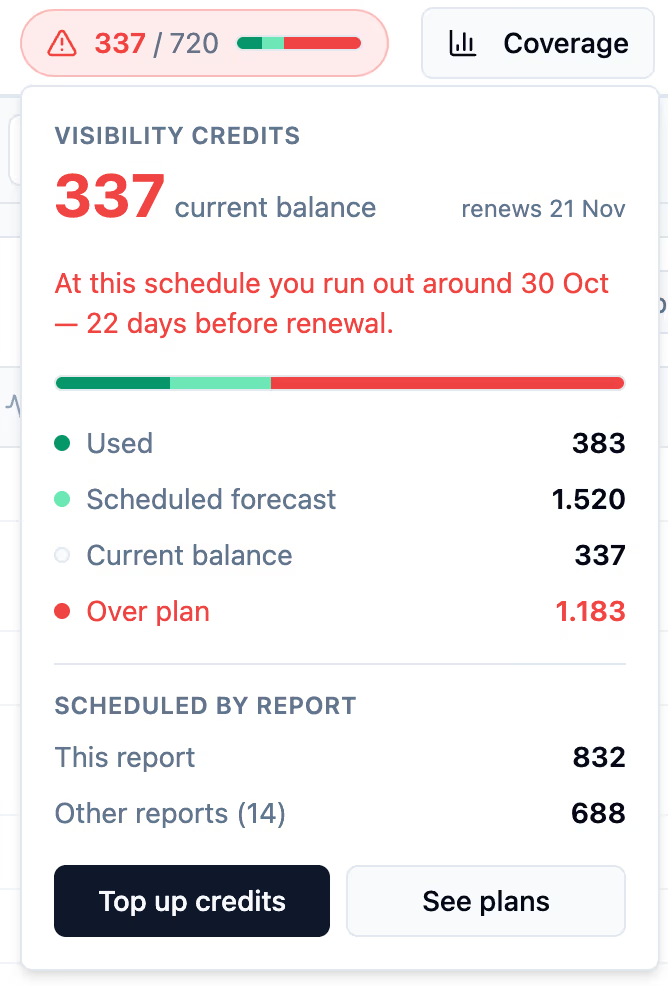
- A new sidebar replaces the previous tiles, and gives you quick access to resources, including customer support optoins (email, book a meeting, live chat), your visibility credit forecast, and links to the Help Center, blog, and this changelog.
New onboarding: a guided setup checklist
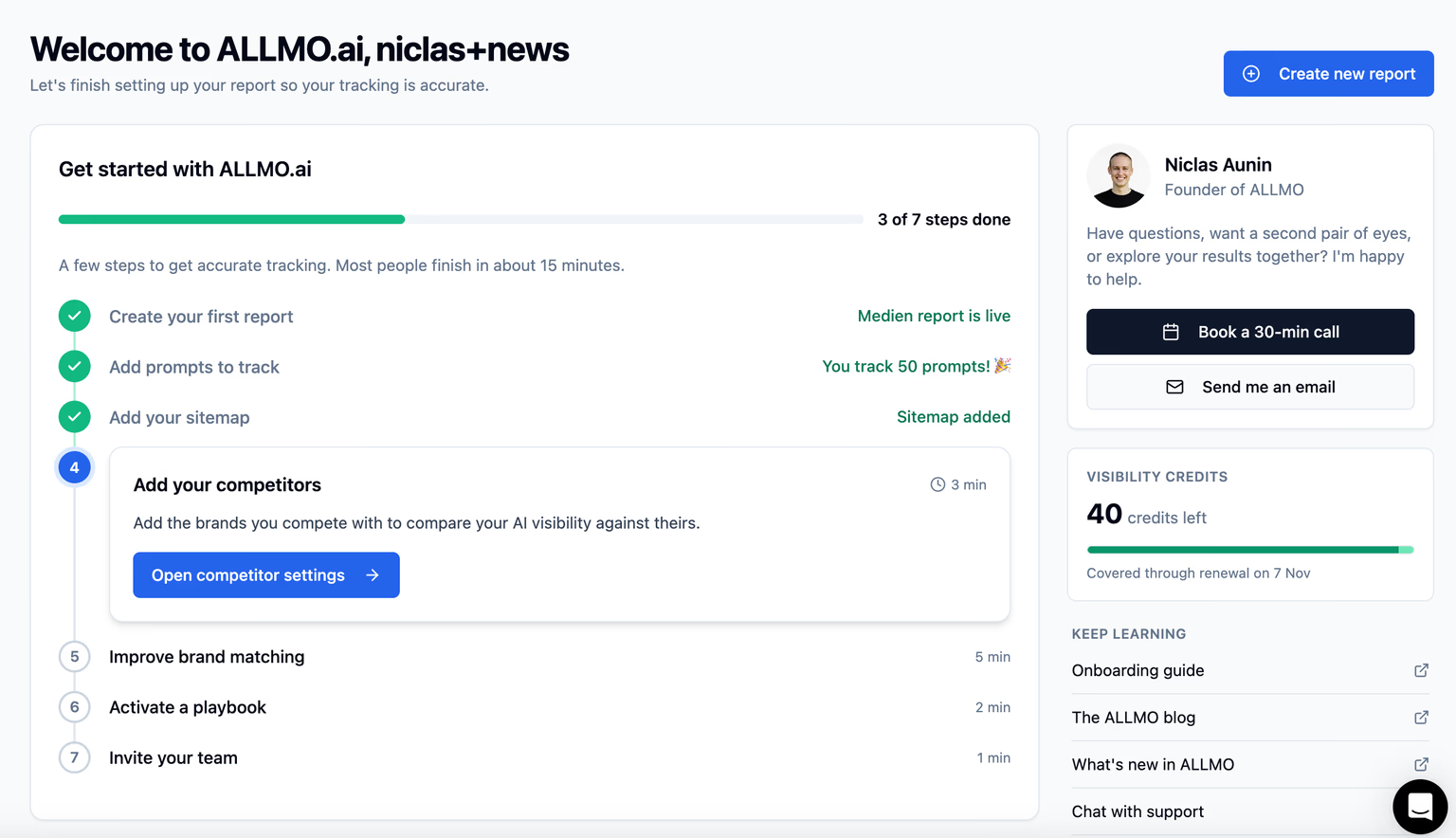
New organizations now see a step-by-step checklist on the home page instead of a single welcome message: create your first report, add prompts to track, add your sitemap, add your competitors, improve brand matching, activate a playbook, and invite your team. Each step shows a time estimate, most people finish in about 15 minutes.
- Click on the next step, and it takes you to the required screen to take action.
- If you complete an action, the step in the checklist is automatically ticked.
See your first results faster
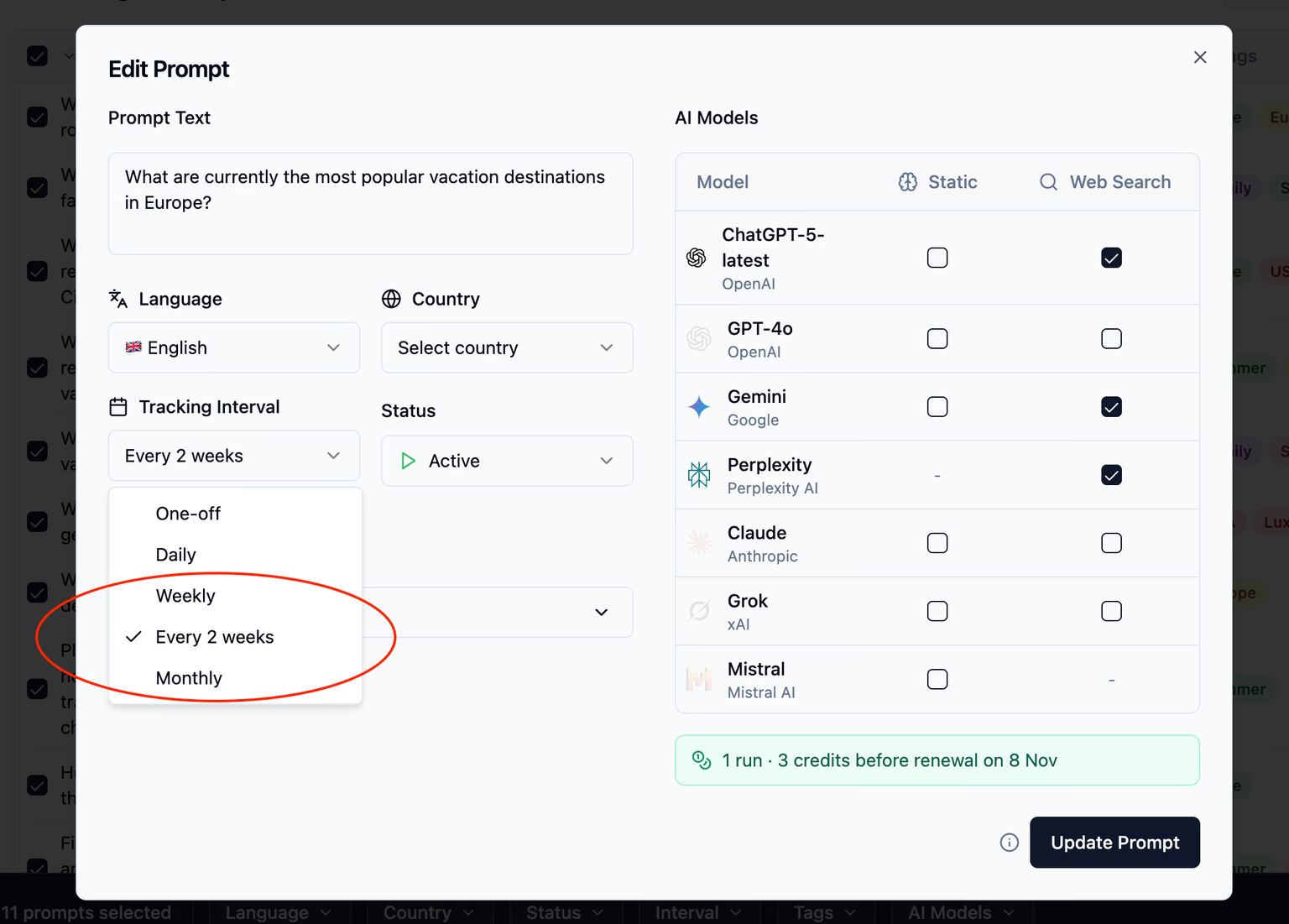
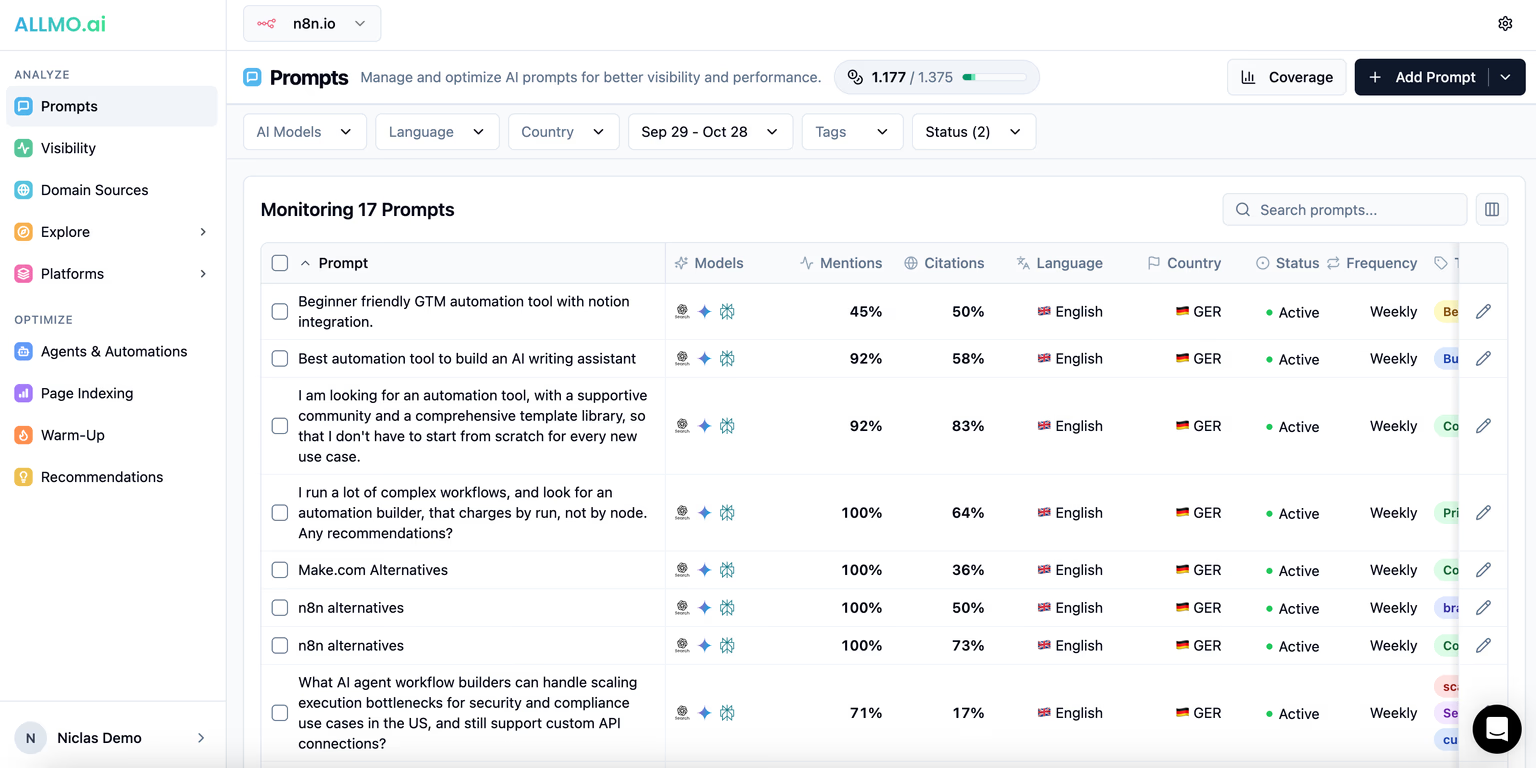
Confirming your plan now starts your report’s first run right away, instead of waiting for the next scheduled run. Open Prompts and you’ll see “Your first results are being generated” with live progress as answers come in, followed by a confirmation once they’re all in.
Competitor suggestions on the Competitors tab
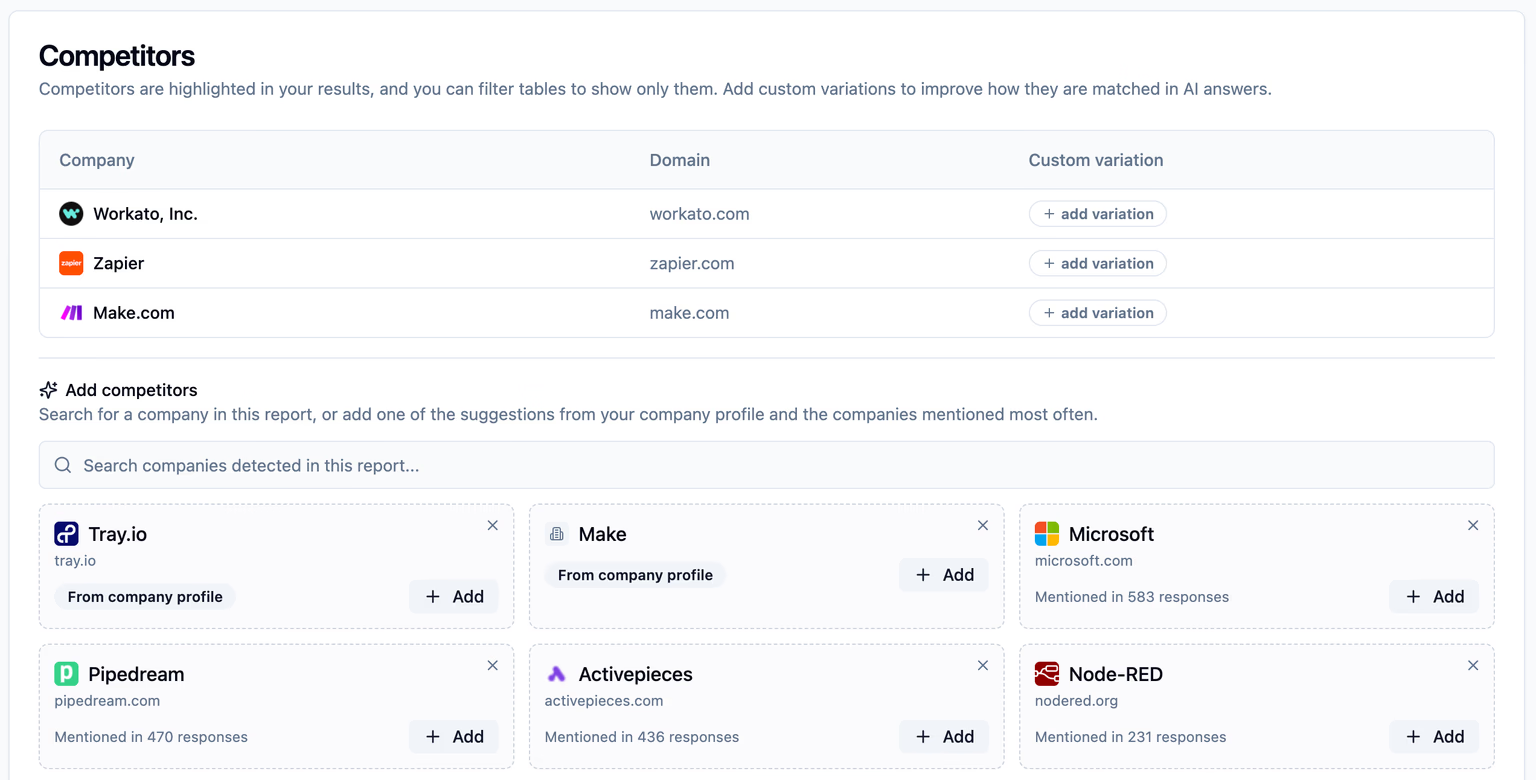
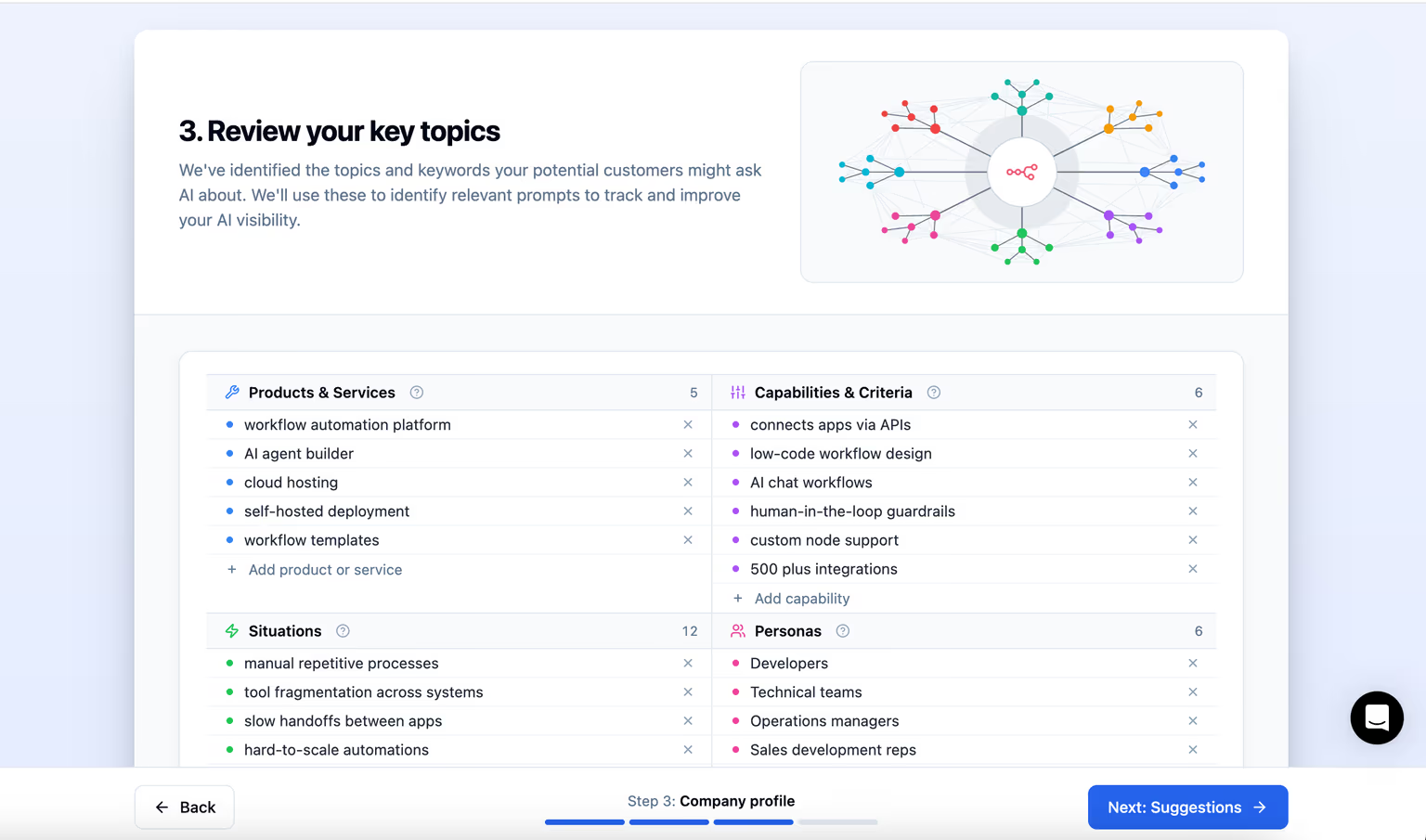
Report Settings → Competitors now suggests competitors based on your company profile (the profile you created during the prompt suggestions flow) and the companies mentioned most often in your report, so you don’t have to search for them one by one.
- Select Add on a suggestion to mark it as a competitor, or hide it for this session.
- A competitor from your company profile that hasn’t been detected in this report yet shows a Search shortcut so you can look for it directly.
- The Competitors table now also lets you add a custom variation inline, so you don’t have to switch tabs.
Brand-matching suggestions
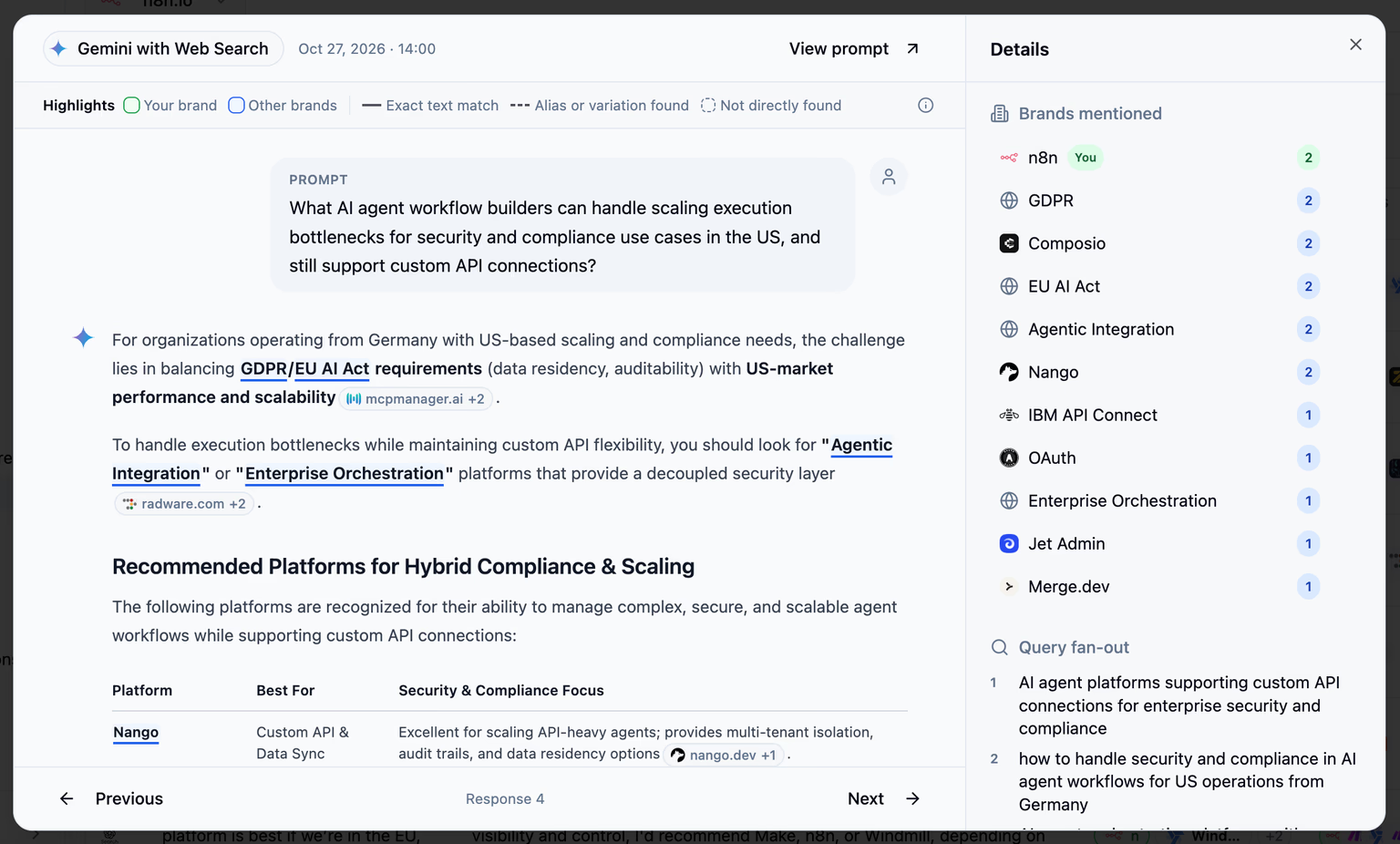
Report Settings → Matching now suggests companies that are mentioned often in your report but have no custom variation yet.
- Add a suggested name directly, or write your own variation instead.
- Learn more about how ALLMO identifies company entities in our Help Center.
Small fixes
- Report Settings → Competitors: the view defaults section has a clearer layout with page icons and a tooltip explaining what each default affects.
- Report Settings → Matching: the table now shows “No custom variations yet” instead of disappearing when a report has none.